Wine details — name, vintage, variety, and image
Fill in the core details of an e-label, including the bottle image.
The Details section is the first part of the e-label form. It covers the basics that identify your wine.
Fields
- Name — the wine’s name as you’d like it shown (for example, 2016 Needle’s Eye Pinot Noir).
- Vintage — the year the wine was produced. You can also choose Non-vintage or Multi-vintage.
- Variety — the grape variety (or blend) the wine best represents.
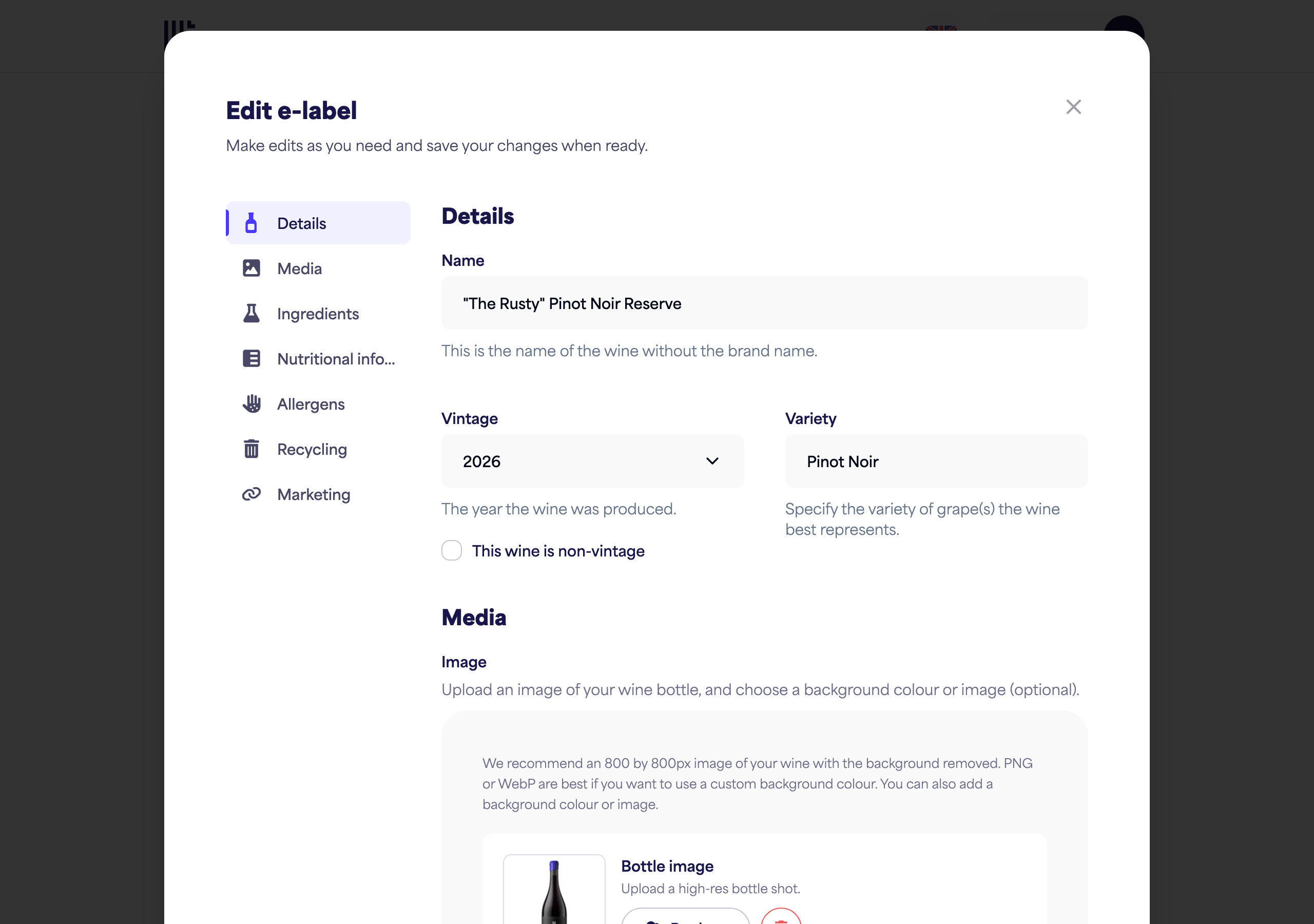
Bottle image
Upload a photo of your bottle. We recommend an 800 × 800px image with the background removed. PNG or WebP are best, especially if you want to use a custom background colour behind it.
Background colour
The background colour defaults to your brand’s Background colour setting — see styling your brand. You can override it per wine using the colour picker shown above the bottle image. Overriding the background colour per wine is a paid feature.
Automatic background removal
Click the wand button (bottom-right of the image preview) to automatically remove the background from your photo and crop and centre the bottle. This is especially useful if you have set a background colour. Background removal is available to all users.

Background image
Instead of a plain colour, you can upload an image to show behind the bottle. This is part of Branding, a paid feature — accounts without it see a Pro badge here instead of the upload option.
- Click Upload next to Background image and choose a photo.
- Click Replace to swap it, or the trash icon to remove it and fall back to the background colour.
A background image is set per wine, so different labels under the same brand can each have their own.